
CompResizer
How to install and use CompResizer for After Effects. Presets, scaling modes, alignment, 3D reframing, and troubleshooting.
Getting Started
Requirements
- Adobe After Effects 2025 (25.0) or later
- macOS or Windows
CompResizer is a CEP extension. It installs as a panel and opens from Window → Extensions → CompResizer.
Installation
Comp Resizer is available from several stores. Follow the section for wherever you bought (or downloaded) it.
Adobe Creative Cloud Marketplace
The simplest route, Creative Cloud installs and updates it for you.
- Open the Creative Cloud desktop app.
- Go to Stock & Marketplace → Plugins and find CompResizer (or open your purchased plugins list).
- Click Install. Creative Cloud handles the rest.
- Restart After Effects if it was running, then open Window → Extensions → Comp Resizer.
Updates appear automatically in the Creative Cloud app.
aescripts + aeplugins
- Download CompResizer from your aescripts.com account (Downloads page).
- Install the aescripts + aeplugins Manager if you don't have it, then use it to install and license CompResizer. (Alternatively, install the
.zxpmanually — see below.) - Restart After Effects, then open Window → Extensions → CompResizer.
The Manager handles licensing, trials and updates. To start a trial, choose Account → Add Trial in the Manager.
Inside the panel, Settings → About and Settings → Support open the aescripts licensing dialog, where you can view your license, request support and check for updates.
Gumroad
- After purchase, download the
.zxpfile from your Gumroad receipt email or your Gumroad Library. - Install the
.zxpmanually see Manual .zxp installation below. - Restart After Effects, then open Window → Extensions → CompResizer.
Contra
- Download the
.zxpfile delivered with your Contra purchase. - Install the
.zxpmanually see Manual .zxp installation below. - Restart After Effects, then open Window → Extensions → CompResizer.
Free trial (from aliazem.com)
- Download the trial
.zxpfrom aliazem.com. - Install it manually see Manual .zxp installation below.
- Open the panel. The header shows how many trial days remain.
- When the trial ends, the panel locks. Buy the full version from any store above and install it to keep working
The trial needs an internet connection the first time it runs. Trial time is counted per machine and does not reset on reinstall.
Trials bought through aescripts work differently — they are handled by the aescripts Manager (Account → Add Trial), not by this timer.
Manual .zxp installation
Use this for Gumroad, Contra, and trial downloads or any time you have a .zxp file in hand.
- Download a free ZXP installer (for example ZXP Installer by aescripts, or ELEMENTS Media Storage's ZXP Installer).
- Open it and drag the
.zxpfile onto it. - Restart After Effects.
- Open Window → Extensions → CompResizer.
If the panel doesn't appear in the Extensions menu, quit After Effects fully (not just close the project) and reopen it.
Interface Overview
CompResizer has two screens, switched from the buttons in the top bar.
The home button (left) opens the resize screen, the settings button (right) opens preferences, About and Support.
Resize screen
| Section | What it does |
|---|---|
| Presets | One click common target sizes |
| Width / Height | Manual dimensions, with aspect ratio lock and a swap button. |
| Content Scaling | Fill, Fit, or Stretch. How content adapts to the new frame |
| Alignment | 3×3 grid. Which part of the frame stays in view |
| Options | Work on a duplicate · Adapt 3D layers |
| Resize | Runs the resize on the active composition |
Settings screen
| Tab | What it does |
|---|---|
| Preferences | Default scaling mode and default options |
| About | Version and links |
| Support | Contact form that opens a pre-filled email |
On the aescripts edition, About and Support open the aescripts licensing dialog instead, which also handles your license and update checks.
Changes in Preferences apply when you click OK; Cancel discards them and Reset to Defaults restores the originals (still needs OK to save).
Comp Resizer always works on the active composition — the one currently open in the Timeline / selected in the Project panel.
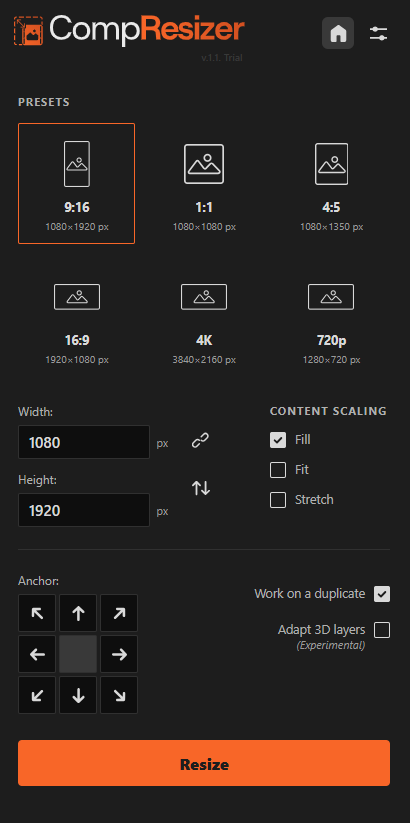
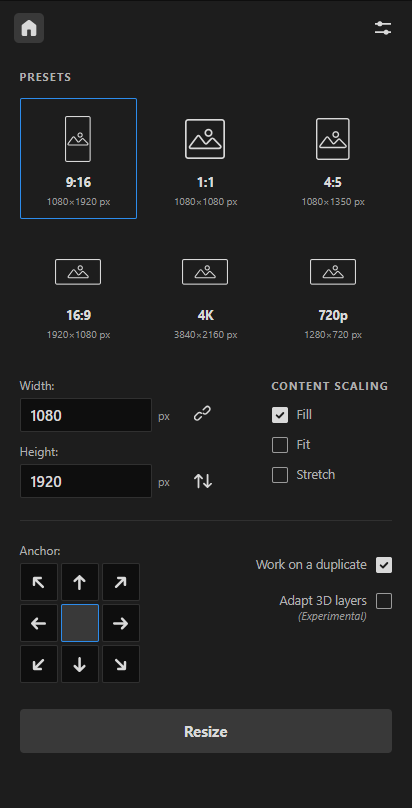
CompResizer Interfaces. The first image shows the current version. The second image shows the interface of the aescripts version. There are no differences between the two versions except for the branding.
Presets

Click a preset to instantly fill in its width and height:
| Preset | Ratio | Size |
|---|---|---|
| Vertical | 9:16 | 1080 × 1920 |
| Square | 1:1 | 1080 × 1080 |
| Portrait | 4:5 | 1080 × 1350 |
| Widescreen | 16:9 | 1920 × 1080 |
| 4K UHD | 16:9 | 3840 × 2160 |
| 720p | 16:9 | 1280 × 720 |
Selecting a preset does not resize anything by itself. It fills the Target Size fields. Click Resize to apply it.
Width & Height
Enter any custom width and height in pixels (up to 30,000px per side).
Aspect Ratio Lock
When enabled, editing the width automatically recalculates a proportional height (and vice versa), based on your source composition's ratio. Turn it off to set width and height independently.
Swap
The swap button (next to the Height field) exchanges the width and height values, useful for quickly flipping between landscape and portrait versions of the same size.

Content Scaling
This controls how your existing content adapts to the new frame size.
Fill

Scales content up until it fully covers the new frame, cropping whatever overflows. Use this when you want a frame with no empty space. e.g., turning a 16:9 comp into a 9:16 story without letterboxing.
Fit
Scale the content down until it fits entirely inside the new frame, adding empty space (letterboxing/pillarboxing) on the sides that don't match. Use this when nothing in the frame can be cropped.
Stretch
Scales width and height independently to exactly match the new dimensions, ignoring the original aspect ratio. This will distort circular or square elements. Use only when non-uniform scaling is intentional.

Anchor
The 3×3 anchor grid sets the reference point used by Fill and Fit. i.e., which part of your original frame stays visible and which part is more likely to be cropped or padded.
For example, with Fill and top-center alignment, content is scaled to cover the new frame while keeping the top of the original frame in view and cropping evenly from the sides and bottom.
Arrows appear in the cells around the selected anchor, showing which way content moves. The same convention as Photoshop's Canvas Size dialog. Anchor has no effect in Stretch mode, since nothing is cropped or padded.

Options
Work on a Duplicate
When enabled, CompResizer duplicates the active composition and resizes the copy, leaving your original untouched. The duplicate is named <original name> <width>x<height> and opens automatically. Turn this off to resize the composition in place.

Adapt 3D layers (Experimental)
CompResizer's 2D engine handles the vast majority of compositions, including 3D layers used for simple depth or camera moves, without this option. Enable Adapt 3D layers when your comp contains 3D layers that need to reframe along with everything else.
How it works
If your comp has 3D layers but no camera of its own, CompResizer adds a camera that replicates the default view before resizing, then adjusts that camera's zoom to match the new frame your 3D layers themselves are never modified, precomposed, or nested. If your comp already has a camera, its zoom is adjusted the same way.
Experimental feature complex 3D scenes may not reframe as expected. Always review your 3D layers after resizing.

How Resizing Works
Every resize runs inside a single undo group. If anything looks wrong, press Cmd/Ctrl + Z once to fully revert — nothing is left behind.
CompResizer does not bake, precompose, or flatten your layers (2D or 3D). It temporarily parents layers to a rig, applies the new scale and position, then releases the rig your layer structure, effects, and keyframes stay exactly as they were, just repositioned and rescaled.
Troubleshooting
The panel is blank or won't open
Restart After Effects fully (quit the app, don't just close the project). If it persists, reinstall the extension the same way you installed it.
Comp Resizer isn't in the Extensions menu after installing
Quit After Effects completely and reopen it. The Extensions menu is only read at startup. If it's still missing, reinstall the .zxp and make sure the installer reported success.
"Engine not loaded — reopen the panel"
This can happen on the very first action after AE starts. Close and reopen the panel from Window → Extensions, then try again.
"Select or open a composition first"
Comp Resizer needs an active composition open one in the Timeline, or select one in the Project panel.
Nothing happens when I click Resize
Check the status line under the button. It reports the exact reason (invalid size, no composition, etc.). If the target size matches the current size, there's nothing to resize.
3D layers look wrong after resizing
Make sure Adapt 3D layers is enabled before resizing. If it's already on and results still look off, this is a known limitation of the experimental 3D engine. Please report the scenario so it can be improved.
The trial says it's expired but I just installed it
On trials from aliazem.com, trial time is counted per machine from the first launch — reinstalling doesn't reset it. If you believe this is wrong, contact support. On the aescripts edition, trials are managed by the aescripts Manager; check Account → Add Trial there.
The trial won't start / can't check status
Trials from aliazem.com need an internet connection on first launch. Check your connection (or firewall) and reopen the panel. For the aescripts edition, make sure you're signed in to the aescripts Manager.
The panel opens but the licensing bar never appears (aescripts edition)
Quit After Effects completely and reopen it. If it persists, reinstall through the aescripts Manager so the extension is registered correctly.
FAQ
Will this move my keyframed animations?
Yes. Reframing repositions the entire layer stack, including anything animated, based on the alignment and scaling mode you choose.
Is it a subscription?
No. Comp Resizer is a one time purchase. The version you buy keeps working forever, with no recurring bill.
Do I pay again for future versions?
Updates within your version (v1.1, v1.2, and so on) are free. Major new versions like v2 add significant new features and are optional paid upgrades and as an existing customer, you get discounted upgrade pricing through aescripts. Whatever version you own keeps working regardless.
Does it work with 3D layers?
2D layers are fully supported. For 3D layers, you can currently resize using an experimental method. Since this feature is still in the testing phase, we recommend checking the result at the new size.
Can I resize multiple compositions at once?
Not yet. Comp Resizer works on one active composition per run. Batch reframing is on the roadmap.
Does it affect precomps?
Only the active composition is resized. Precomps nested inside it are not resized or modified.
Can I undo a resize?
Yes. Every resize is wrapped in a single undo step.
Which After Effects versions are supported?
AE 2025 (25.0) and newer, on macOS and Windows. Work is ongoing to improve support for older After Effects versions.
Do I need a license key?
It depends where you bought it. On aescripts, your license is handled by the aescripts + aeplugins Manager. Sign in and it activates automatically. Copies from Adobe, Gumroad, Contra or aliazem.com have no activation step: install and it's ready.
Can I use it on more than one computer?
Yes, within the terms of the store you purchased from.
Version History
1.1.1
- Compatibility for v.26.5
1.1.0
- Redesigned interface (two-screen layout, Settings with Preferences, About and Support)
- Saved default preferences
- Improved camerabased 3D reframing,
- The aescripts edition adds integrated licensing through the aescripts + aeplugins Manager.
1.0.0
Initial release. Presets, Fill/Fit/Stretch, alignment, duplicate-safe mode, experimental camera-based 3D reframing.
Support
Found a bug or have a feature request? Send email to toolsupport@aliazem.com include your After Effects version, OS, and a short description of what you were resizing.